
Microsoft has been steadily reshaping how finance functions inside Dynamics 365 Business Central, and the new Expense Agent is one of the more interesting additions to land on the platform recently. Until now, native expense management in Business Central was essentially non-existent; most customers reached for ISV solutions. With Expense Agent, Microsoft delivers an AI-first capture → categorize → post pipeline that lives right next to the GL, with no third-party app required.
This post walks through two parts: how receipt and invoice scanning works from the web app, and how the extracted data lands inside Business Central entities once the agent has done its work.
Capturing receipts from the web app
The Expense Agent web app is the most visible entry point for end users, and one of its most useful design choices is that employees don’t need a Business Central license to use it. Casual submitters consume Copilot Credits instead, around 50 credits per processed receipt, which keeps cost aligned with actual usage and avoids licensing every field employee just so they can upload a coffee receipt.
The upload flow is intentionally simple:
- The user opens the web app and drags a receipt, image or PDF into the upload area. Email forwarding to a configured shared mailbox, Microsoft Teams, and Microsoft 365 Copilot chat are alternative channels feeding the same backend.
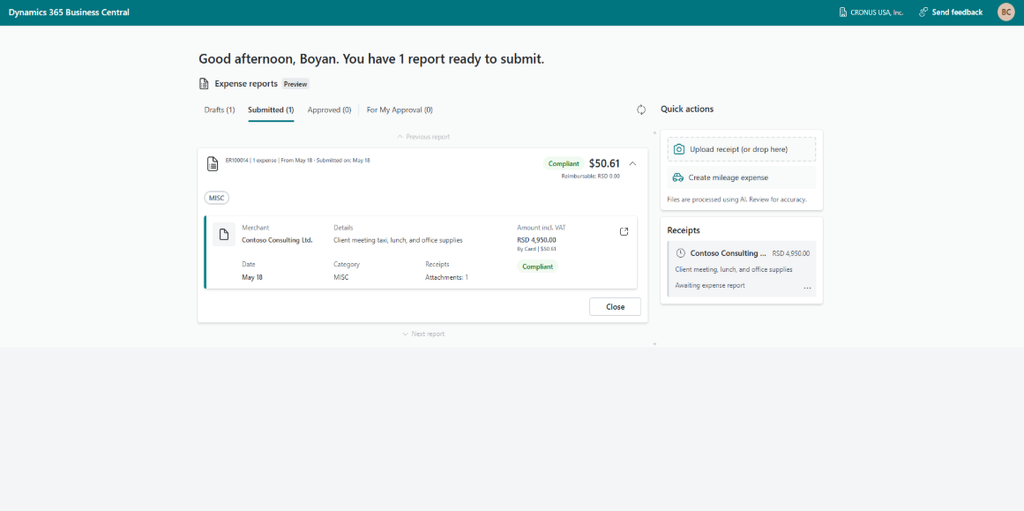
- The expense enters a Processing status while the agent runs extraction. Under the hood, Microsoft uses Anthropic models as a subprocessor for the AI step worth flagging to security teams during rollout, since it needs to be enabled in the Microsoft 365 admin center.
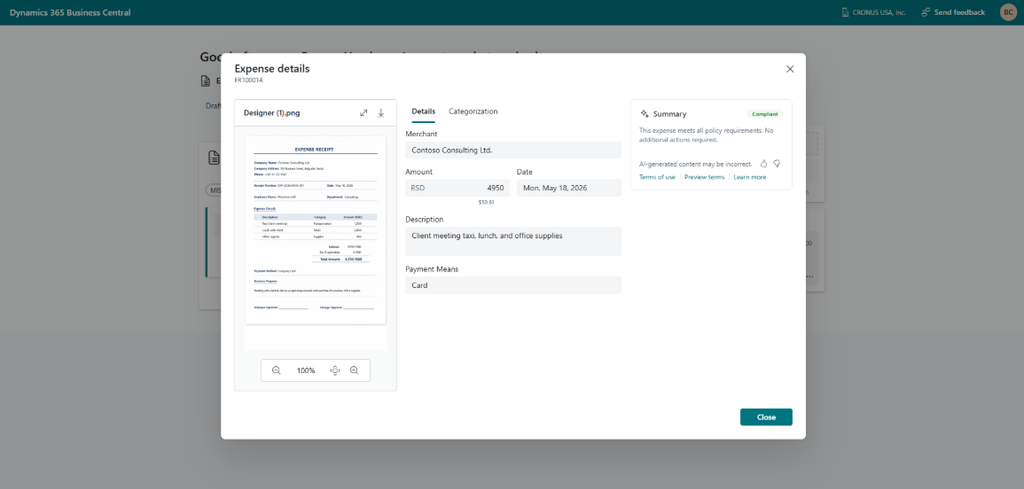
- The agent extracts merchant, date, total amount, currency, payment method, receipt number, and a suggested category, then drops the expense into the Drafts tab for review.
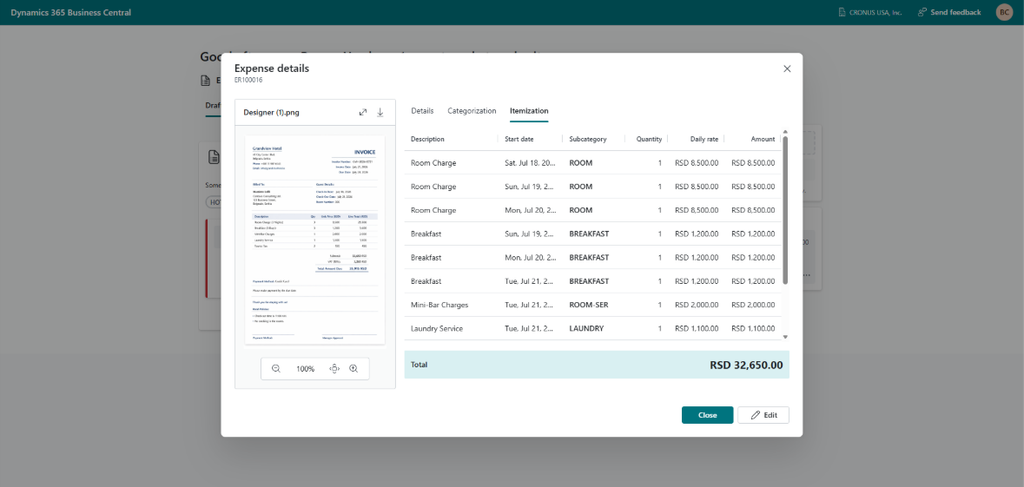
- If the category requires itemization (hotels are the canonical example, with room, breakfast, and minibar treated separately), an itemization tab appears with subcategory lines and amounts already filled in. Categories that require participants, morale or entertainment events, open a participants tab where the user can add internal employees or external guests.
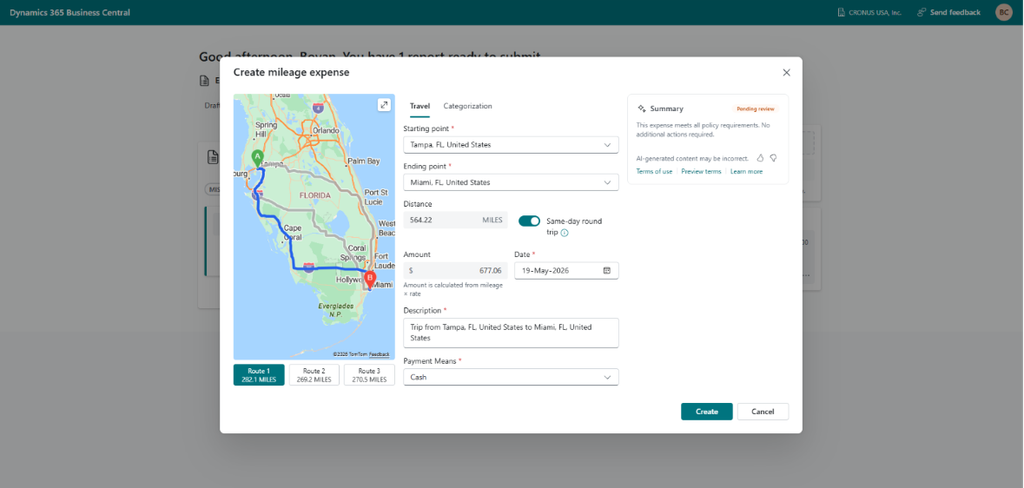
- Mileage expenses don’t need a receipt at all. The user enters start and end points, the agent calculates route options, and a screenshot of the chosen route is attached to the expense record automatically. Per diem is handled similarly, calculated from itinerary details with partial-day rules applied per setup.
The user reviews, edits if needed, groups expenses into a report, and submits. The agent enforces policy along the way, with soft warnings the user can override with a note, and hard blocks that prevent submission until the underlying issue is resolved.
Where the data lives inside Business Central
Once the agent has done its work, the extracted data shows up across familiar Business Central structures rather than in a separate silo.
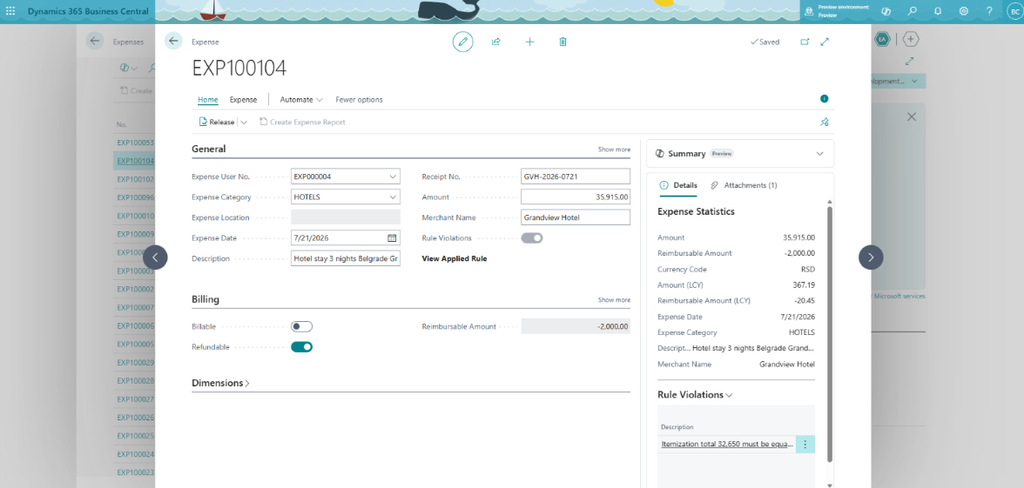
- Expense is the atomic entity — one receipt becomes one expense record, carrying category, subcategory, amount, currency, payment method, date, merchant, attached receipt file, participants (where relevant), and itemized lines
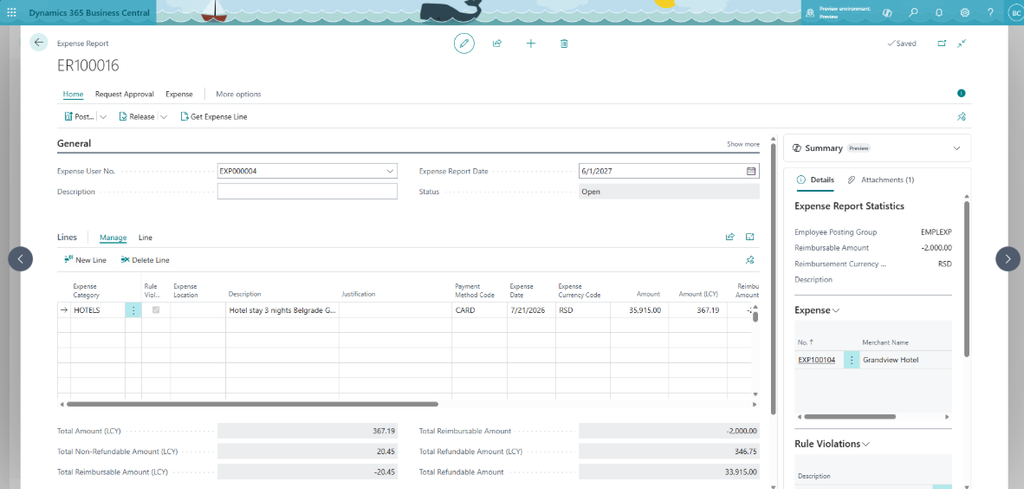
- Expense Report groups expenses into a submission. Reports move through Draft → Submitted → Approved, mirroring how purchase and sales documents flow in BC
- Expense Categories and Subcategories are configured by the administrator and mapped to posting groups, which is where the integration with the rest of BC really shows up. Posting groups determine which G/L accounts the expense hits when the report is posted, so categorization at capture time directly drives the eventual journal entries
- Approval workflow is configured on the Expense Agent Setup page. When the agent is enabled, BC uses a newer workflow path automatically, the classic approval setup is only needed for the non-agent scenario
- On posting, an approved expense report generates standard G/L entries, and where reimbursement is involved, vendor ledger entries against the employee vendor. Refundability is configurable per category and subcategory, so a hotel bill with a non-refundable minibar charge is split correctly without manual line-by-line editing.
Setup itself is centralized on the Expense Agent Setup page, organized into FastTabs covering general settings, rules and controls, number series, communication, mileage and per diem, posting groups, and agent access control. Microsoft recommends starting from the assisted setup (Configure Expense Agent) and only dropping to the manual page for tuning afterward.
Worth knowing before you roll it out
Preview availability is currently US-only and English-only, with additional regions following in July 2026. The agent requires the AGENT ADMIN and EXPENSE MGMT. ADMIN permission sets, a configured shared mailbox, and Anthropic enabled as a subprocessor. For partners and customers evaluating this against existing ISV expense solutions, the question isn’t really “is it better than 3rd party solutions”, it’s whether being native, AI-first, and license-light for casual submitters changes the calculus. For most mid-market BC tenants, I think it does.
Talk to Reach About Your Business Central Roadmap
AI-powered features like Expense Agent are arriving inside Business Central faster than most internal teams can evaluate them on their own. Reach helps finance and IT leaders cut through that pace with clear guidance grounded in real implementation experience, not just release notes.
Whether you need a project assessment before enabling a new AI feature, a Rapid Business Central implementation to build on, or ongoing managed services to keep your environment tuned as Microsoft ships updates, Reach is ready to help you make a decision that actually makes sense for your organization. Reach out to Reach today to start the conversation.
Frequently Asked Questions
No. Casual submitters can use the web app without a full BC license and instead consume Copilot Credits per processed receipt, which keeps licensing costs aligned with actual expense volume.
Not yet. The preview is currently limited to the United States and English, with Microsoft planning additional regions starting in July 2026.
Administrators need the AGENT ADMIN and EXPENSE MGMT ADMIN permission sets, along with a configured shared mailbox and Anthropic enabled as a subprocessor in the Microsoft 365 admin center.
Categorization happens at the point of capture, and each category or subcategory is mapped to a posting group by an administrator. That mapping determines which G/L accounts are used once a report is approved and posted.

Senior Technical Consultant at Reach
Bojan is a Senior Technical Consultant and certified Microsoft Solution Architect at Reach, where he designs and implements flexible, high-value solutions using Microsoft Power Platform and Dynamics 365. Drawing on broad experience with tools like Azure Logic Apps, Azure Functions, and Power Automate, he combines deep platform knowledge with creativity to solve complex problems for clients.