
A reusable Azure Function that reliably parses CSV files and returns structured JSON, ready to plug into any Logic App or integration pipeline.
Why Not Parse CSV Directly in Logic Apps?
When building an integration that processes CSV files, the first instinct is often to handle parsing
inside the Logic App itself using expressions like split(triggerBody(), ‘,’) or similar. For the simplest files, this works. For real-world data, it breaks.
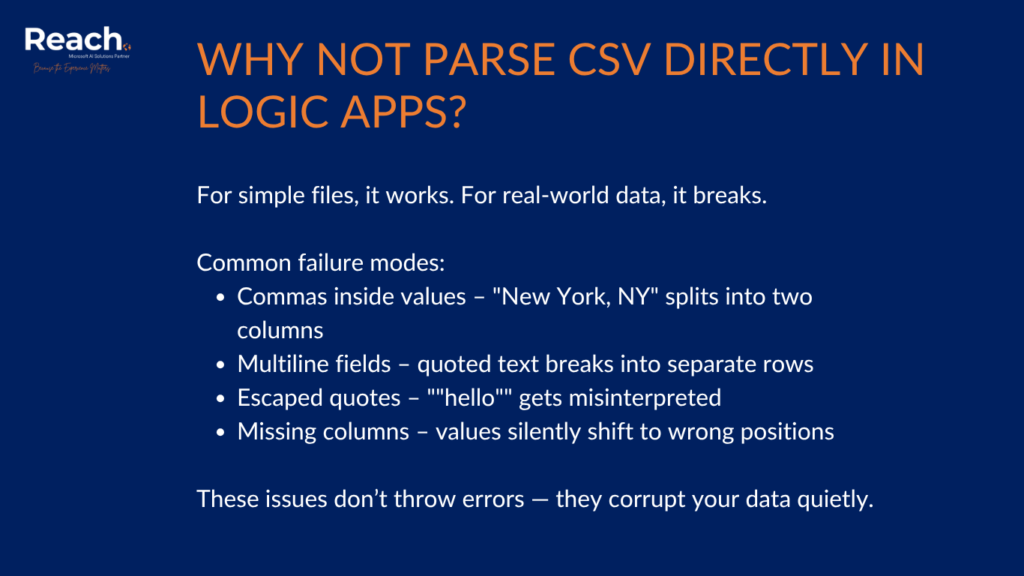
Here are the common failure modes:
- A field value containing a comma, e.g. “New York, NY” – splits into two columns instead of one.
- Quoted strings that span multiple lines are treated as separate rows.
- Fields with escaped quotes inside them (e.g., He said “”hello“”) are misinterpreted.
- Optional or missing trailing columns silently shift all remaining values to the wrong position.
When column positions shift, every downstream value is wrong. Wrong data flows into wrong XML attributes, wrong database columns, wrong API fields – with no error thrown. The pipeline appears to succeed.
An Azure Function solves this by handling CSV parsing according to RFC 4180, the formal standard for CSV files. The function reads the file correctly regardless of quoted commas, embedded newlines, or escaped quotes, maps each value to a named property based on the header row, and returns structured JSON. Logic Apps then works with column names rather than positional indexes – making the flow far more robust and easier to maintain.
What the Function Does
The Azure Function exposes a single HTTP POST endpoint. The caller sends a raw CSV string in the request body and receives a JSON response containing all parsed rows, each field keyed by its column header.
The response envelope looks like this:
{
“recordCount”: 42,
“generatedAt”: “2026-05-12T09:00:00Z”,
“rows”: [
{
“ColumnA”: “value1”,
“ColumnB”: “value2”,
“ColumnC”: 100.00
},
…
]
}
The column names in the rows array match exactly the headers from the first row of the CSV – whatever they happen to be for your file. The function is fully generic: it does not know or care about the specific columns it receives.
Project Structure
The function is a standard Azure Functions Isolated Worker project targeting .NET 8. It consists of three files:
| File | Purpose |
| Program.cs | Host startup: wires up the isolated worker pipeline. |
| CsvToJson.cs | The function entry point: reads the HTTP request, calls the parser, serializes JSON, returns the response. |
| CsvParser.cs | The RFC 4180-compliant CSV parser: handles all edge cases and performs type inference on each field value. |
Program.cs – Host Startup
The startup code is minimal. It uses the Isolated Worker model, which runs the function in a separate process from the Azure Functions runtime – giving you full control over the .NET version and dependency injection:
var host = new HostBuilder()
.ConfigureFunctionsWebApplication()
.Build();
await host.RunAsync();
ConfigureFunctionsWebApplication() sets up the ASP.NET Core-style HTTP pipeline for the isolated worker, enabling middleware and filters if needed. No additional services are registered here, but this is where you would add dependency injection for logging sinks, configuration providers, or any shared services.
The Function Entry Point
The function class handles the full HTTP lifecycle: reading the request body, calling the parser, building the response envelope, and returning the result. It is decorated with [Function(“CsvToJson”)] and bound to HTTP POST:
[Function(“CsvToJson”)]
public async Task<HttpResponseData> Run(
[HttpTrigger(AuthorizationLevel.Function, “post”)]
HttpRequestData req)
Step 1: Read the Request Body
The raw CSV arrives as the request body. The function reads it as a UTF-8 string using a StreamReader:
using var reader = new StreamReader(req.Body, Encoding.UTF8);
string csvContent = await reader.ReadToEndAsync();
If the body is empty or unreadable, the function returns 400 Bad Request with a structured error payload. All error responses follow the same JSON shape: { “error”: “description” }.
Step 2: Parse the CSV
The raw string is passed to CsvParser.Parse(), which returns a list of dictionaries – one per data row, each keyed by the column header:
List<Dictionary<string, object?>> records = CsvParser.Parse(csvContent);
If parsing fails (malformed CSV, empty file, no header row), the function catches the exception and returns 422 Unprocessable Entity.
Step 3: Build and Return the JSON Response
The parsed records are wrapped in a metadata envelope and serialized with System.Text.Json:
var envelope = new
{
recordCount = records.Count,
generatedAt = DateTime.UtcNow.ToString(“o”),
rows = records
};
string json = JsonSerializer.Serialize(envelope, jsonOptions);
The serializer is configured with UnsafeRelaxedJsonEscaping to preserve characters like angle brackets and ampersands as-is in string values, rather than escaping them to \u003c. This keeps field values readable and correct when Logic Apps inspects the JSON.
The CSV Parser
CsvParser is a static class with a single public method: Parse(string csvText). It implements RFC 4180 handling across three internal stages.
Stage 1: Row Splitting
Before splitting into fields, the raw CSV text is split into rows. This cannot be done with a simple string.Split(‘\n’) because a quoted field may contain embedded newlines – which must be treated as part of the field value, not as row boundaries.
The row splitter tracks whether the current character is inside a quoted field and only emits a row boundary on newlines that occur outside quotes. Double quotes inside a quoted field (the RFC 4180 escape mechanism) are handled so they do not accidentally end the quoted section:
if (c == ‘”‘ && inQuotes && next == ‘”‘)
{
current.Append(‘”‘);
i++; // skip the second quote
}
else if (c == ‘\n’ && !inQuotes)
{
rows.Add(current.ToString());
current.Clear();
}
Stage 2: Field Parsing
Each row string is then split into individual field values. The same quoting rules apply: commas inside quoted fields are part of the value, not separators. Escaped quotes within a field are converted back to single quotes. Leading and trailing quote characters that delimit a field are stripped.
The output is a string array of raw field values, in column order, for that row.
Stage 3: Type Inference
Each raw field value is passed through a type inference chain before being stored in the row dictionary. The chain tries each type in order and stops at the first match:
| Input value | Inferred type | .NET type | Example |
| Empty or whitespace | Null | null | “” |
| “Y” / “N” | Boolean | bool | “Y” → true |
| Whole number | Integer | long | “42” → 42 |
| Decimal number | Float | double | “3.14” → 3.14 |
| M/d/yyyy date | ISO date string | string | “1/5/2026” → “2026-01-05” |
| Anything else | String | string | “Hello, world” |
Type inference means that numeric columns become actual numbers in the JSON output rather than quoted strings. This matters when the downstream system or Parse JSON schema expects a number type – Logic Apps will coerce correctly typed values without any additional conversion expressions.
Error Handling
The function returns consistent, structured error responses across all failure modes. Every error response is a JSON object with a single error field, paired with the appropriate HTTP status code:
| HTTP Status | Condition |
| 400 Bad Request | The request body could not be read, or the body is empty. |
| 422 Unprocessable Entity | The CSV could not be parsed (malformed structure, no header row, no data rows). |
| 200 OK | The CSV was parsed successfully – even if recordCount is 0. |
Logging is emitted at each stage via ILogger, giving you visibility into function execution in Application Insights without any additional instrumentation.
Deploying the Function
The function deploys like any standard Azure Function App. The key configuration choices are:
| Setting | Recommended value |
| Runtime | .NET 8 Isolated Worker |
| Hosting plan | Consumption (scale to zero when idle) |
| Authorization level | Function (key-based, suitable for Logic Apps) |
| Region | Same region as your Logic App (reduces latency and egress costs) |
Once deployed, the function URL and key are used directly in the Logic App Azure Function action that calls the parser. The Logic App sends the raw CSV as the request body and reads the JSON response.
Calling the Function from Logic Apps
Inside a Logic App, the function is invoked with an Azure Function action. After the action completes, a Parse JSON action consumes the response body using an explicit schema. It is important to define this schema manually rather than relying on auto-generation from a sample response. Auto-generation frequently assigns the wrong type to numeric columns (typing them as strings), which causes downstream expressions to fail or produce incorrect results.
A minimal schema for a CSV with three columns looks like this:
{
“type”: “object”,
“properties”: {
“recordCount”: { “type”: “integer” },
“generatedAt”: { “type”: “string” },
“rows”: {
“type”: “array”,
“items”: {
“type”: “object”,
“properties”: {
“ColumnA”: { “type”: “string” },
“ColumnB”: { “type”: “string” },
“ColumnC”: { “type”: “number” }
}
}
}
}
}
Adjust the property names and types to match your actual CSV headers. Once the schema is in place, every downstream action can reference values by name – item()?[‘ColumnA’] reliably and with the correct type, without any guessing or workaround expressions.
Summary
The CSV-to-JSON Azure Function solves a real problem that appears simple on the surface but breaks quickly in production: correctly parsing CSV files that contain quoted commas, embedded newlines, escaped quotes, and inconsistent column counts.
By handling CSV parsing in a dedicated function rather than inside the Logic App, you get:
- Correct parsing of all RFC 4180-compliant CSV files
- Named column access in downstream actions – no positional index expressions
- Type inference that produces real numbers, booleans, and ISO dates rather than raw strings
- Consistent, structured error responses with meaningful HTTP status codes
- A single, testable unit that can be called from any Logic App, Power Automate flow, or HTTP client.
The next post in this series covers how to consume this function output inside a Logic App to build a complete CSV-to-XML transformation pipeline.
Build Reliable Data Pipelines with Reach
If your data pipelines rely on CSV or other flat-file formats, building them on a solid foundation is essential. Reach supports organizations with end-to-end Azure integration implementation and managed services, ensuring every component—from Azure Functions to Logic Apps—is designed for reliability, scalability, and long-term maintainability.
Whether you’re modernizing existing workflows or stabilizing fragile integrations as part of an ERP migration or recovery, our team helps you implement robust Azure-based solutions that perform consistently under real-world conditions. If your current data flows aren’t meeting expectations, we can help you fix them—properly and permanently.

Junior Microsoft Dynamics 365 developer with a solid foundation in delivering maintainable, business-oriented solutions. Adept at supporting requirements analysis, implementing and testing customizations, and collaborating with cross-functional teams to improve system functionality. Demonstrates strong attention to detail, a professional approach to communication, and a commitment to continuous learning and best practices.
Logic Apps lack native support for RFC 4180, leading to incorrect parsing of quoted values, commas, and line breaks.
It isolates parsing into a reusable, standards-compliant service that guarantees data correctness.
Yes. The function dynamically maps headers and handles all compliant CSV structures.
It ensures numeric and boolean values are correctly typed, avoiding errors in Logic Apps and downstream systems.
In ERP migrations, system integrations, and any data pipeline where correctness is critical.