
A practical X++ guide to migrating files out of internal platform storage and future-proofing file generation
Introduction: The Breaking Change
D365 F&O file storage changes have broken many custom solutions that depend on internal, platform-managed storage. If your customization relies on SharedServiceUnitStorage, SAS URLs, or shared-key (account key) authentication, you may be seeing sudden 403 Forbidden errors at runtime, often with no warning when the URL or token is generated. This article explains what changed, why these failures occur, and provides a production-tested pattern to rescue existing files from internal storage and redirect all new files to a customer-controlled Azure File Share, so the issue never returns.
Access to Finance and Operations managed Azure Storage accounts is now locked down against legacy access patterns.
- Shared-key authentication is denied for internal managed storage accounts,
- SAS URLs signed using account keys may still be generated successfully but fail when used (403 at access time),
- Anonymous or public access to internal storage endpoints is disabled (so public blob/container patterns stop working),
- Managed Identity is the supported path for internal storage operations.
The most important and most confusing detail is that a SAS token or URL can look valid and still fail, because the signature is created with credentials the storage account no longer accepts, so the failure shows up only at runtime, typically as 403 Forbidden.
A Common Real-World Failure Pattern
In many implementations, a file-based customization depends on internal D365 storage in two separate ways, and each breaks differently under tightened rules.
- The first dependency involves stored support or configuration files uploaded into SharedServiceUnitStorage under a category (for example, templates or transformation/config files), where retrieval frequently depends on SAS URLs returned from the category listing, which are no longer safe to follow externally.
- The second dependency involves generating output files produced by an export or generation process that historically wrote into internal storage during a close file path. Under current enforcement, this path becomes unreliable and needs redesign to target customer-owned storage directly. These are two different problems with two different solutions.
Two Goals (Don’t Combine These)
Goal 1: One-Time Migration: Rescue existing files already stored in SharedServiceUnitStorage and move them to a customer-controlled Azure File Share. This is a one-time, runnable per environment.
Goal 2: Permanent Redirect: Ensure all new files are written directly to the customer’s Azure File Share going forward—never touching internal D365 storage again. This is a permanent architectural change.
Architecture Overview (Before vs After)
Before (broken pattern):
- File retrieval via SAS URLs returned from internal storage listings,
- File output routed through internal storage at close file time,
- Result being runtime access failures (commonly 403).
After (supported and durable):
- Existing files downloaded through the internal channel and migrated to Azure File Share,
- All new outputs streamed directly to customer-owned Azure File Share.
SharedServiceUnitStorage.GetDataInCategory() can still return SAS URLs, but those URLs are no longer reliable external access mechanisms. The correct approach is to treat the SAS URL as a metadata carrier, extract the file identifier embedded in the URL path, and download via the supported internal API.
The Migration Flow (4 Steps)
- Enumerate all files via GetDataInCategory()
- Parse the URL-encoded fileId from the URL path
- Download via the internal managed identity channel (DownloadData)
- Stream the file directly to Azure File Share
Step 1: Enumerate all files via GetDataInCategory()
This returns an enumerable of SAS URLs, one per stored file in the category.
Step 2: Parse URL-Encoded FileId
The file identifier (GUID) is embedded in the URL path and is URL-encoded. The following X++ code demonstrates how to parse the URL-encoded fileId from the URL path
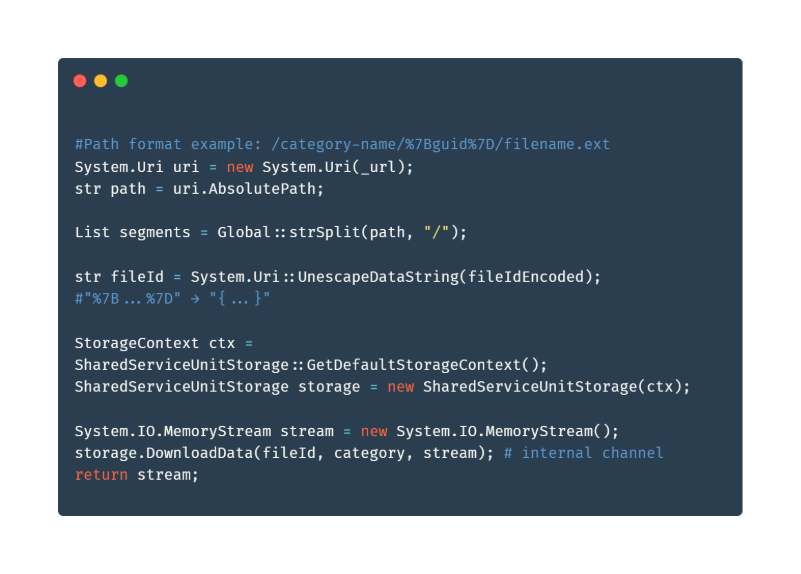
Step 3: Download via Internal Managed Identity Channel
Use storage.DownloadData(fileId, category, stream) to retrieve bytes through D365’s internal supported path. This approach eliminates external HTTP access and removes dependence on the SAS token.
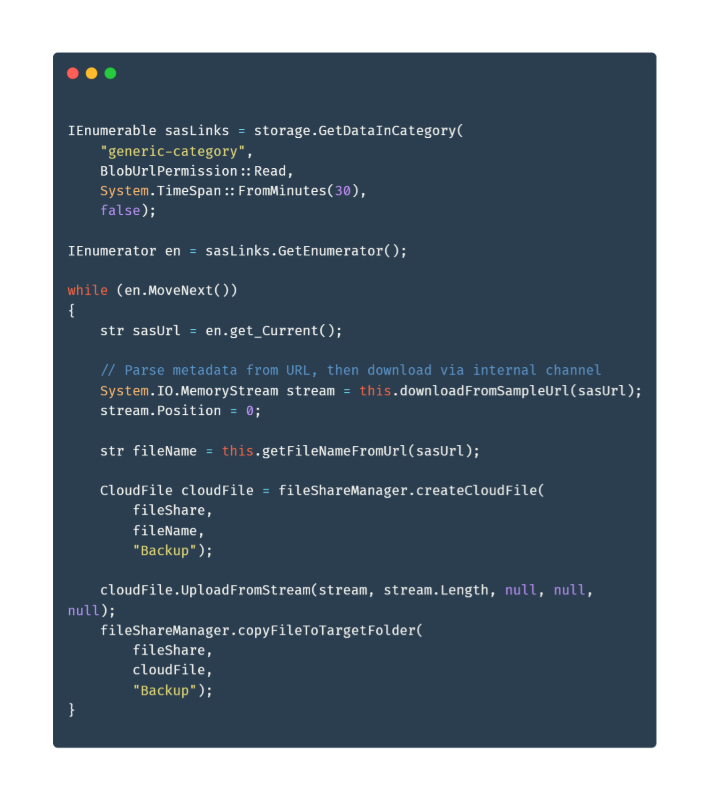
Upload the memory stream to the customer-owned Azure File Share (example folder shown as Backup).
Complete Migration Loop
The following code demonstrates the complete loop that combines SAS URL masking, file download, and Azure File Share upload operations. This pattern ensures secure migration of files from internal platform storage to customer-controlled Azure File Share:
Migrating existing files is only half the work. If your process still tries to write new output into internal storage when closing the file, the next run can fail again. The durable pattern is to build output files in memory (stream-based), intercept the stream at close time, and upload directly to a customer-owned Azure File Share.
The new path is to stream directly to a customer-owned Azure File Share with the following steps:
- Sanitize the filename for Azure naming conventions
- Retrieve integration parameters from a parameter table
- Get the Azure File Share reference
- Create a cloud file
- Upload from the in-memory stream
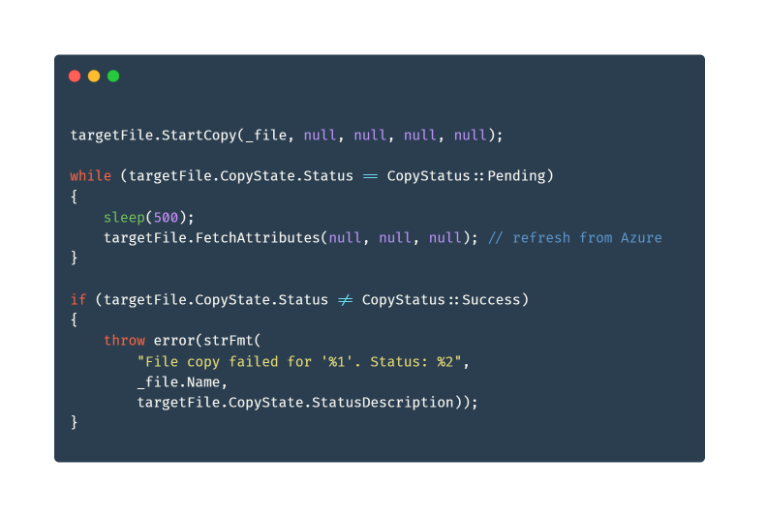
- Trigger an async copy with polling.

Asynchronous Copy Operations
Azure File Share copy operations are asynchronous, so you must poll until completion to avoid a process finishing before the copy completes. The polling loop checks the copy status, sleeps 500ms between checks to refresh from Azure, and throws an error if the copy fails.
Why Customer-Owned Azure Storage?
Microsoft’s restrictions apply to D365-managed internal storage. A customer-owned Azure Storage Account or Azure File Share is authenticated independently and is therefore the correct long-term target for integrations that need durable persistence and predictable access.
Key Takeaways
- Internal D365 storage is no longer a safe integration target for shared-key or SAS patterns
- Treat migration (existing files) and redirect (new files) as separate work items
- Never follow internal SAS URLs externally; parse the fileId and use DownloadData() instead
- Redirect new output directly to customer-owned Azure File Share
- Keep storage configuration in parameter tables (e.g., IntegrationParameters) rather than hardcoding credentials in X++.
Conclusion
The durable fix has two parts: a one-time migration for what already exists, and a permanent redirect for everything going forward. Once you implement both, file workflows become stable, supported, and resilient to future platform storage tightening. If you are dealing with similar storage changes or have questions about applying these patterns in your own solution, feel free to get in touch. I am happy to provide further clarification or share additional insights.
Struggling with D365 F&O Storage Migrations?
If your Dynamics 365 Finance & Operations solution is hitting 403 errors or breaking due to Microsoft’s storage security changes, Reach Migration for D365 Finance can help. Our team has production-tested experience migrating file workflows off internal platform storage and onto durable, customer-controlled Azure infrastructure — so you can stop firefighting and get back to building.

Start clean. Stay supported.
Reach can help you migrate off internal D365 storage and build file workflows that won’t break again.

Junior Microsoft Dynamics 365 developer with a solid foundation in delivering maintainable, business-oriented solutions. Adept at supporting requirements analysis, implementing and testing customizations, and collaborating with cross-functional teams to improve system functionality. Demonstrates strong attention to detail, a professional approach to communication, and a commitment to continuous learning and best practices.