
You don’t have to send emails from Dynamics 365 to get them tracked in your sales records. If you work in Outlook 365, you can connect those emails back to the system, so they show up in your timelines.
The Dynamics 365 Add-In
In Outlook 365, look for the Dynamics 365 icon. It’s usually in your ribbon or toolbar. Click it and you’ll see a small panel open on the side of your email.
First time you use it, you’ll need to authenticate. Click “Allow” and let it connect to your Dynamics 365 environment. After that, it works automatically.
Tracking an Email
Open an email in Outlook. Click the Dynamics 365 add-in. You’ll see whether the recipient is in your system and whether this email is already tracked.
If it says “Unknown recipient,” that person isn’t in your Dynamics 365 as a contact. If it says “Not tracked,” the email hasn’t been connected to any record yet.
To track it, click “Look for records.” You’ll see options for what you can link to:
- Accounts
- Contacts
- Leads
- Opportunities
Start typing to search. If you know the contact is in your system, search for their name and select them. Click to link, wait a second for it to process, and you’re done. The email is now tracked to that contact.

Where It Shows Up
Go to that contact’s record in Dynamics 365. Open their timeline. The email you just tracked is there—subject line, full contents, timestamp, everything.
Anyone who opens this contact record sees that email. Sales rep sent it? Account manager can read it. New person takes over the account? They see the full communication history.
If You Don’t See the Add-In
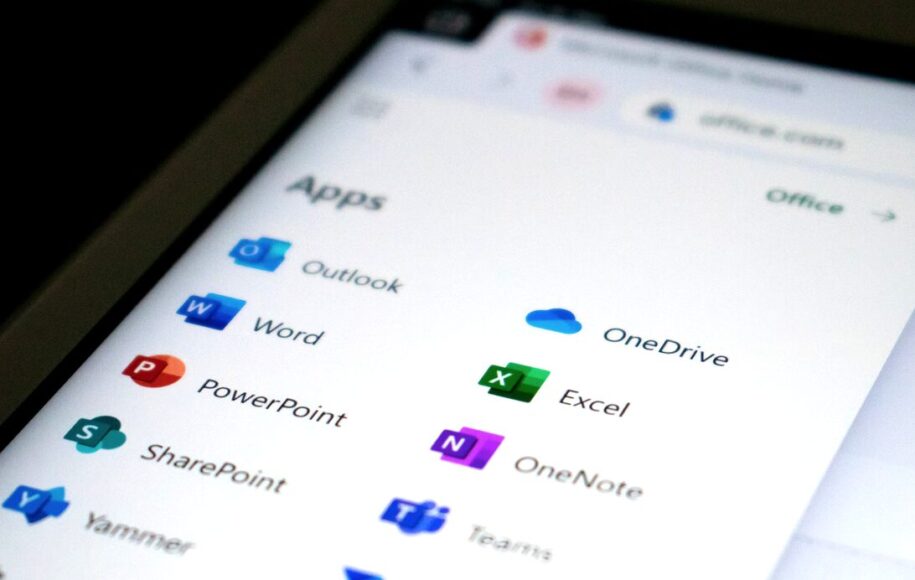
Sometimes the Dynamics 365 icon isn’t visible. Click on “Apps” in your Outlook ribbon and look for it there. It should be available in your app list.
Still don’t see it? Contact your admin team. The add-in needs to be enabled for your account. They can set it up and you’ll have access within a few minutes.
Why This Matters
Most sales communication happens in Outlook. If those emails don’t make it into Dynamics 365, you lose half the story. Someone asks “Did we send them the proposal?” and you’re searching your sent folder instead of checking the timeline.
Tracking emails from Outlook bridges that gap. You work where you’re comfortable, but the system still captures everything.
What Gets Tracked
When you track an email, Dynamics 365 stores:
- Subject line
- Full email body
- Date and time sent
- Who it’s from and who it’s to
- Any attachments (depending on your system settings)
It’s not a summary or a reference. It’s the actual email, living on the timeline just like emails sent directly from Dynamics 365.
Choosing What to Link To
You can link one email to multiple records if needed. Maybe you’re discussing an opportunity with a contact at a specific account. You could track that email to the opportunity, the contact, and the account.
In practice, most people pick the most relevant record. Email about a specific deal? Track it to the opportunity. General communication with a contact? Track it to their contact record. Company-wide announcement? Track it to the account.
There’s no perfect rule. Just ask: if someone needs context on this email six months from now, where would they look first?
Bulk Tracking
Some teams track everything. Every email that touches a customer goes into Dynamics 365. That works if you have the discipline to keep it up and the storage to handle it.
Other teams track selectively—important conversations, proposals, decisions, negotiations. The routine stuff stays in Outlook.
Figure out what makes sense for your team. The add-in makes both approaches possible.
The Outlook-First Workflow
If you live in Outlook and only check Dynamics 365 occasionally, this feature is critical. You’re not forced to change your habits. Send your emails like you always do. Then spend 30 seconds tracking the important ones back to the system.
That small habit means your timeline stays current without you ever leaving Outlook. When someone else needs to pick up the account or when a deal heats back up after going quiet, all the context is there.
The Reality
Email tracking isn’t glamorous. It’s basic hygiene. But basic hygiene prevents bigger problems.
When communication lives in individual inboxes, knowledge leaves when people leave. When someone goes on vacation, their deals go dark. When territories change, the new rep starts from zero.
Tracking emails to Dynamics 365 solves that. It’s a few extra clicks per email, but it’s the difference between a system that knows what’s happening and one that’s just storing contact information.
Ready to get your sales team up and running in Dynamics 365? Our Rapid Sales Implementation gets you live in weeks, not months.